Where a preview helps
- Comparing natural and vivid red directions
- Testing warmth close to the face
- Planning root depth and dimensional placement
Virtual hair color preview
Red hair can range from quiet auburn to clear copper or vivid fashion red. The balance of orange, red, brown, and violet determines how natural or bold the result feels.
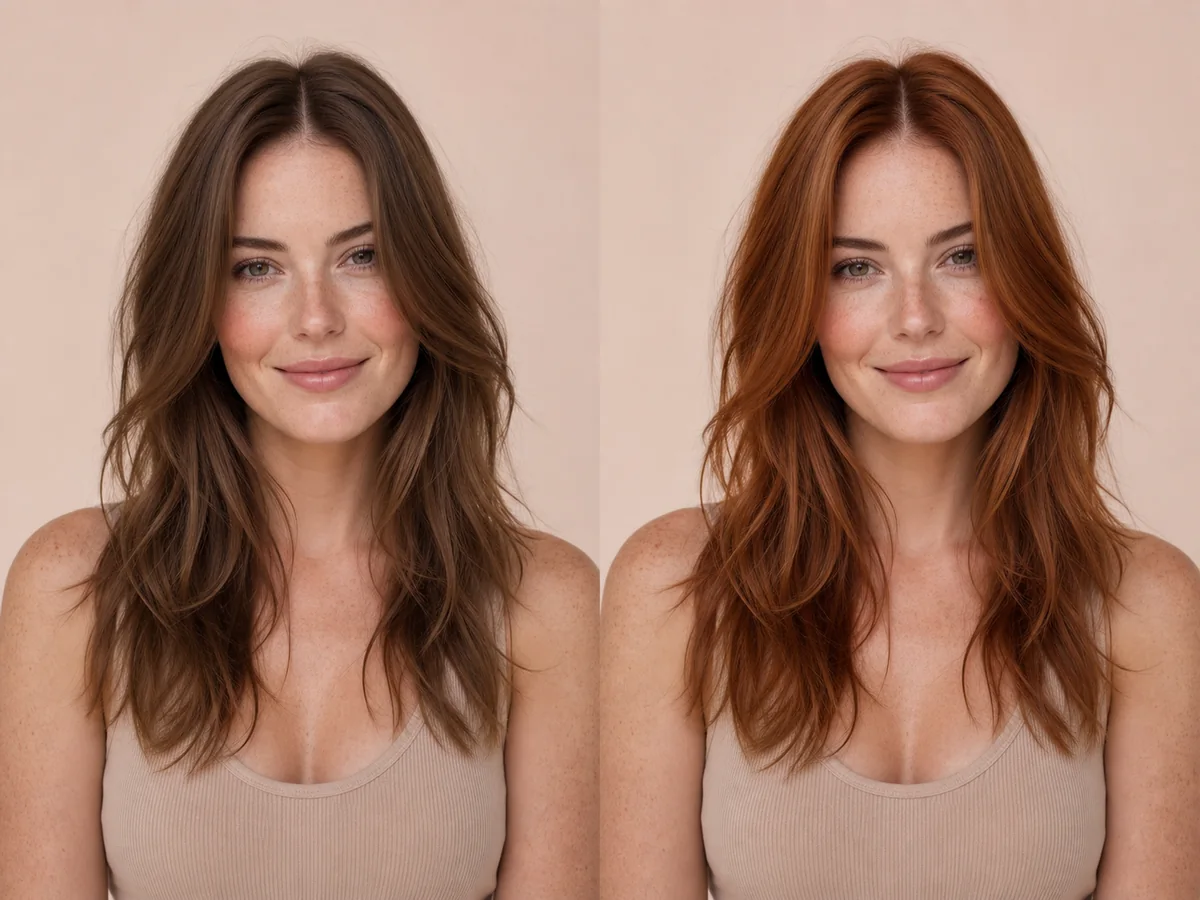 OriginalPreview
Before the appointment
Deeper auburn adds red within a brunette base, while brighter shades reflect more copper or true red. Root depth and dimension can make a dramatic color easier to wear and maintain.
What to tell your stylist or barber
Show the exact balance you prefer—brown-red, copper-red, or vivid red—and ask about fade expectations, home care, and a realistic maintenance schedule.
Photo setup
Use a photo taken in neutral daylight or soft white light. Avoid colored room lighting and strong filters, because they can make both your skin tone and starting hair color difficult to read.
In the Android app
Use a front-facing photo with your face and hairline visible in even light.
Choose a haircut, hairstyle, or hair color and let Glowify create the preview.
Keep favorite before-and-after results as a starting point for your salon or barber conversation.
Common questions
Yes. Open Glowify on Android, choose a clear front-facing photo, and select a red hair preview. The app creates an AI image intended to help you explore the direction before making a real change.
Treat it as a visual reference rather than a guarantee. The screen preview cannot show exact salon pigment or fade behavior, but it can help choose the broad family and intensity. Your starting hair, texture, density, stylist technique, lighting, and aftercare all affect the real result.
Use a photo taken in neutral daylight or soft white light. Avoid colored room lighting and strong filters, because they can make both your skin tone and starting hair color difficult to read.
Nearby options
Use the alternatives below to isolate the detail that matters most to your decision.
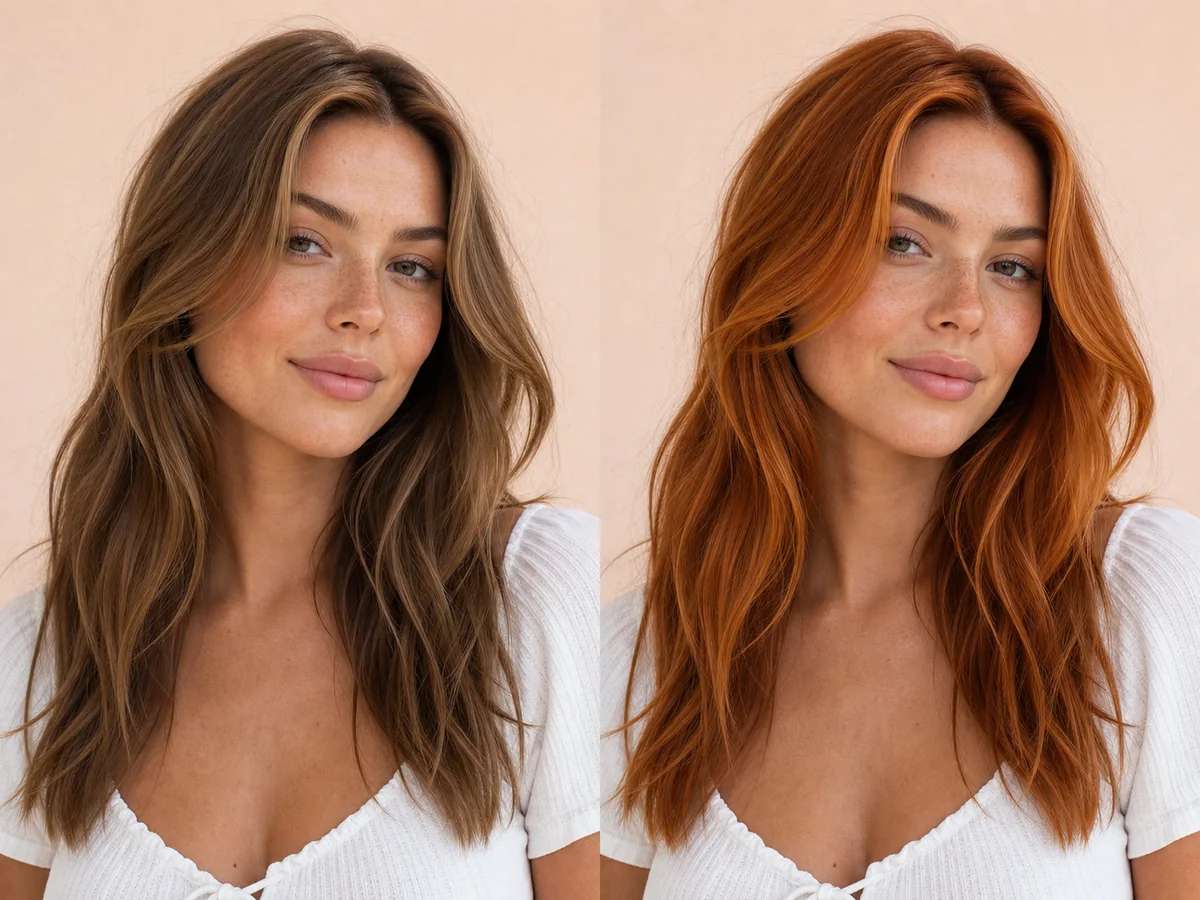
Copper sits between golden orange and red, with versions ranging from soft strawberry copper to saturated penny tones. Small shifts in depth can make the result feel natural or statement-making.
Explore this look →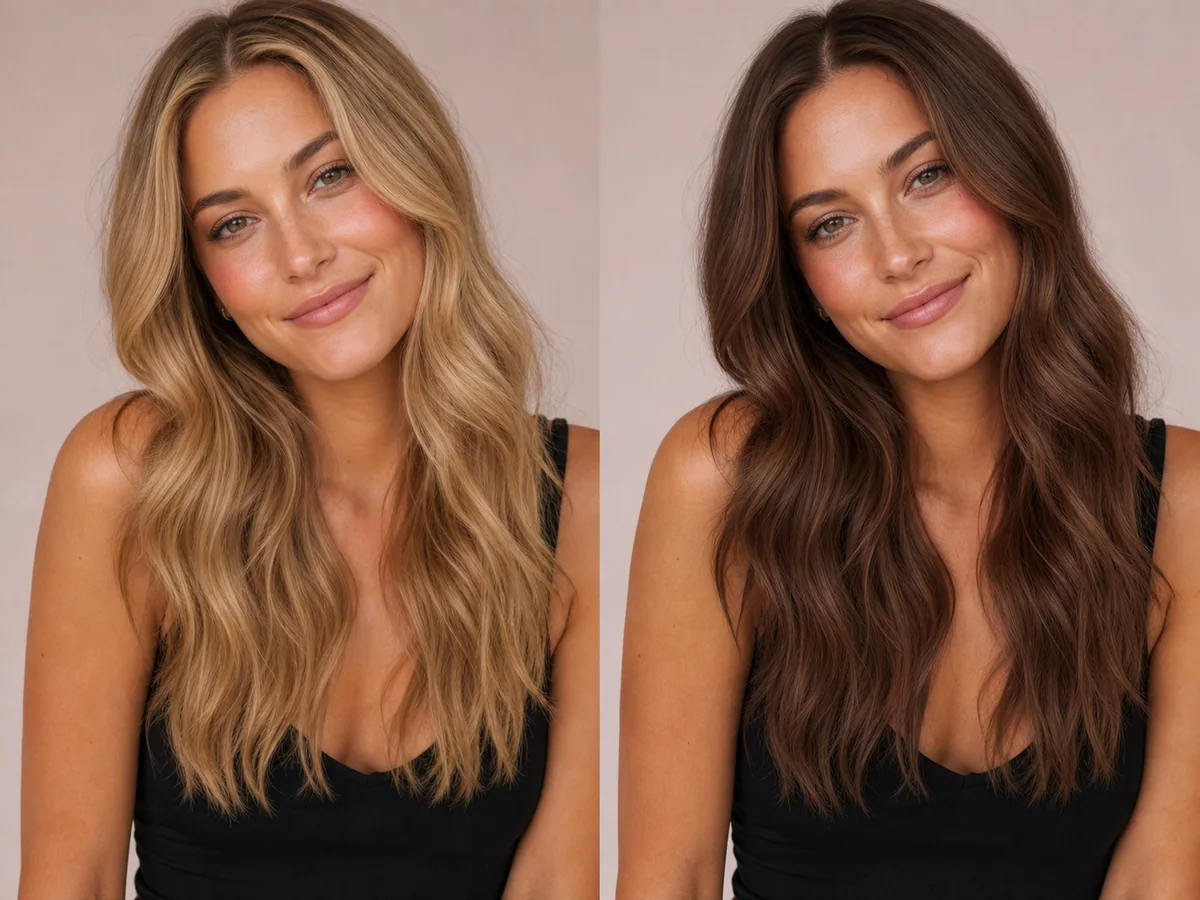
Brunette shades can look soft and dimensional or deep and high-contrast. The useful decision is not simply “brown,” but the depth, warmth, and amount of variation through the hair.
Explore this look →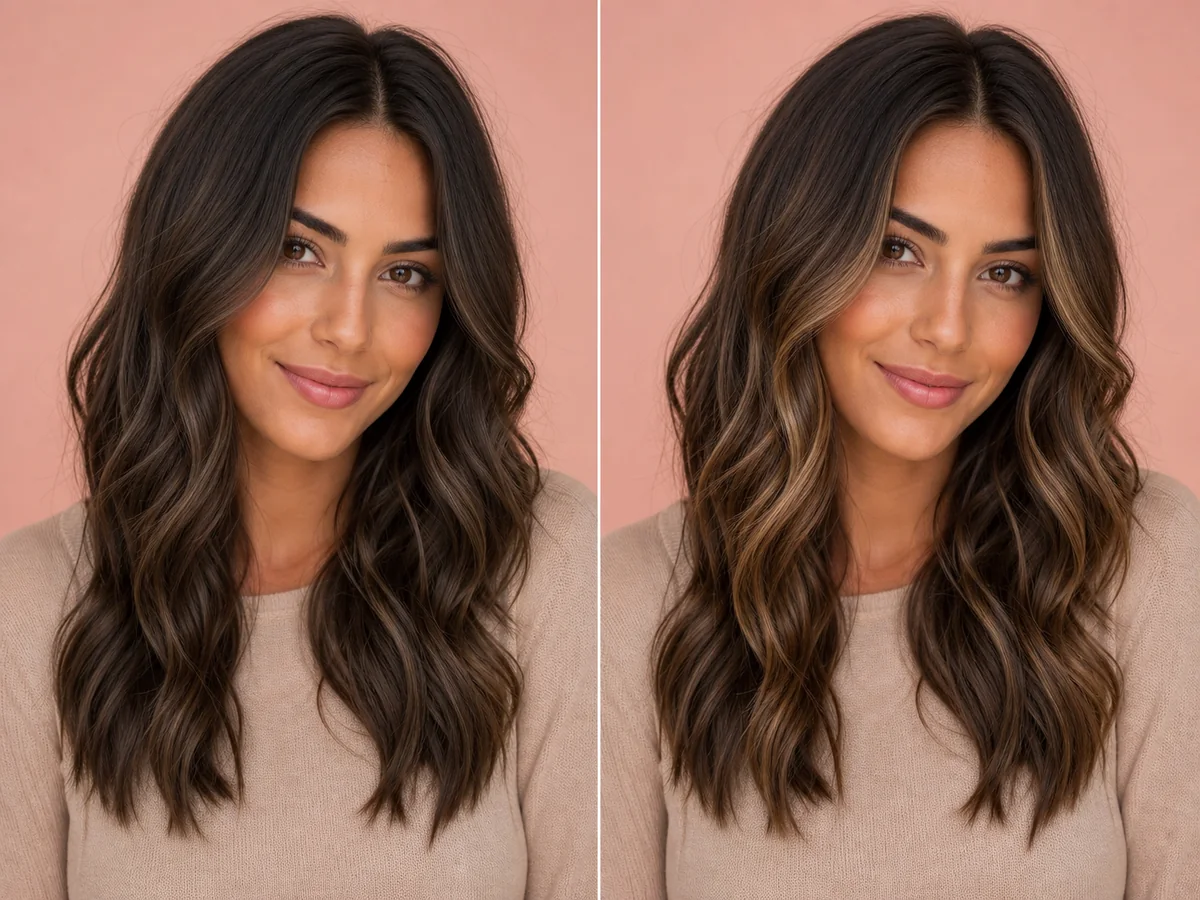
Balayage is a placement approach, not one fixed color. The amount of brightness near the face, depth at the root, and contrast through the ends determine the overall effect.
Explore this look →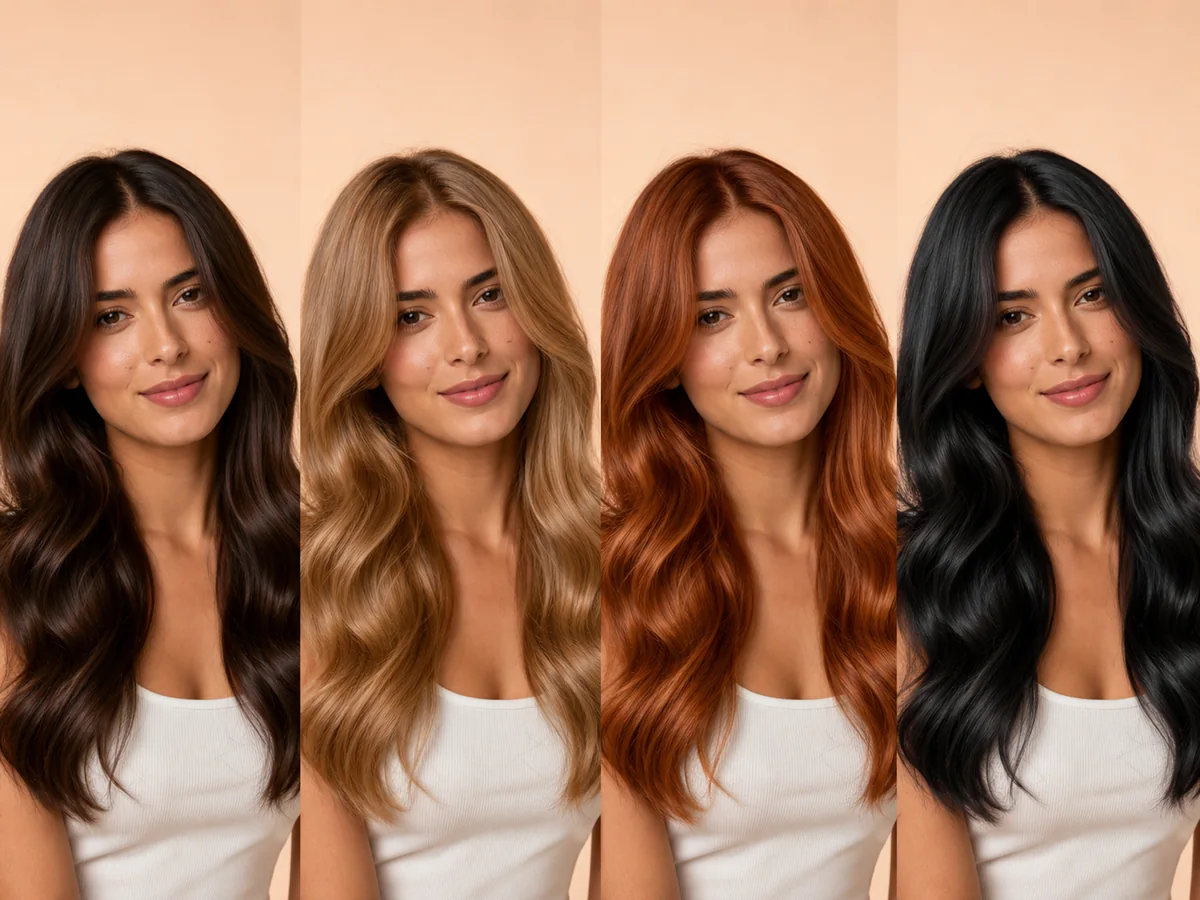
The most flattering color is not determined by one skin-tone chart. Personal style, contrast preference, eye color, maintenance budget, starting hair, and hair condition all matter.
Explore this look →Take the next step
Open Glowify on Android, compare the result, and bring the useful details to your stylist or barber.